
|
Nesterenko Software Master Schedule Assistant Application The Master Schedule Assistant application takes School Information System CSV data from what is typically a multi-page 'listing' and transforms it into a one-page 'visual' grid format which is a basic need of timetablers and others. Note: All Master Schedule creation and management is done within the School Information System. The Master Schedule Assistant app merely displays the Master Schedule in a variety of 'visual' reports. 
|
|
Typical School Administration System Master Schedule Listing
A 'listing' of the current Master Schedule within the School Administration System might look similar to this and typically could be a multi-page report of 20 or more pages. During the Timetabling process, many timetablers take this information and manually write various 'grids' or place sticky notes on a bristol board etc. which allow them to 'see' course placement etc. This is a very time-consuming process and needs to be redone every time courses move during the timetabling process. 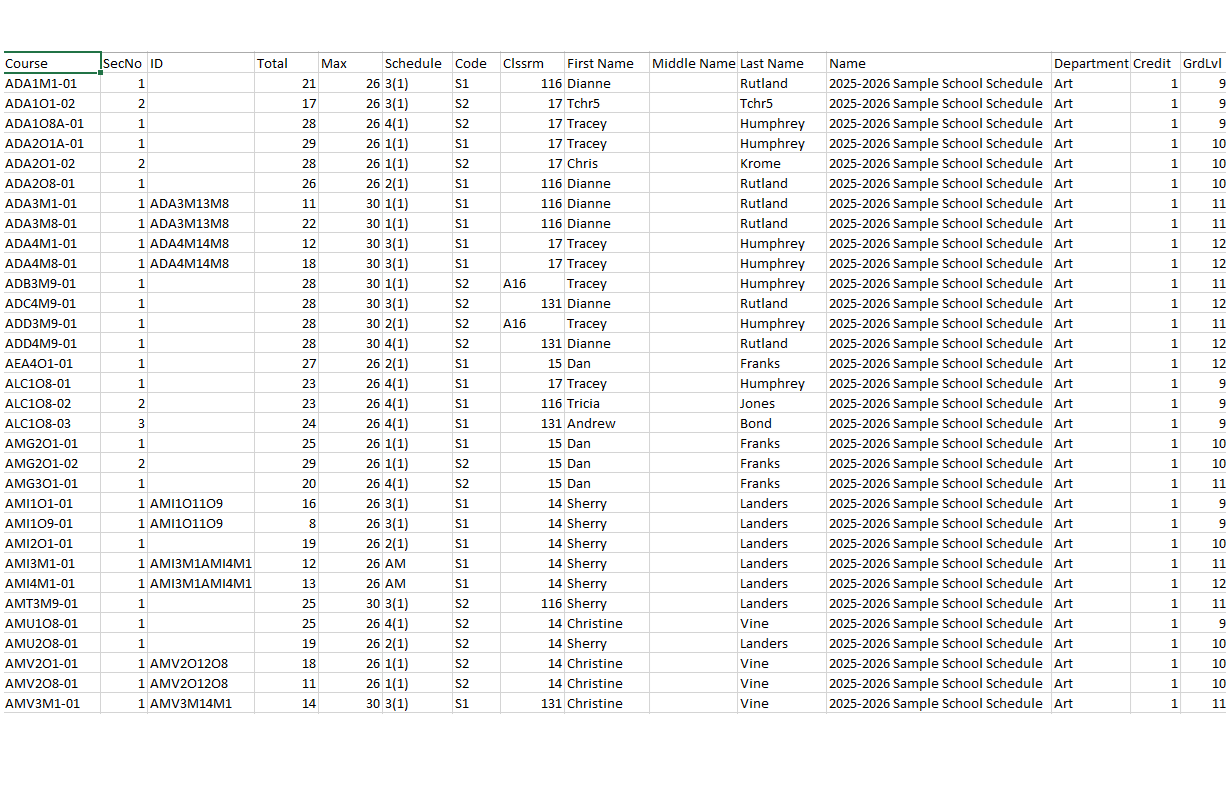
(Click on Image to Enlarge) |
Master Schedule Assistant Application
The entire Master Schedule is displayed on one page. Aids the Timetabling process by displaying CSV data easily extracted from existing Aspen® or PowerSchool® reports. The process of extracting and refreshing reports takes less than a minute. Dozens of reports are available. The Timetabler is able to see at a glance: Course Placement (Semester/Period), Class Size, Load by Period/Grade, Trouble Spots etc. Master Schedule Report - Partial with notations to explain Layout and Symbols etc. 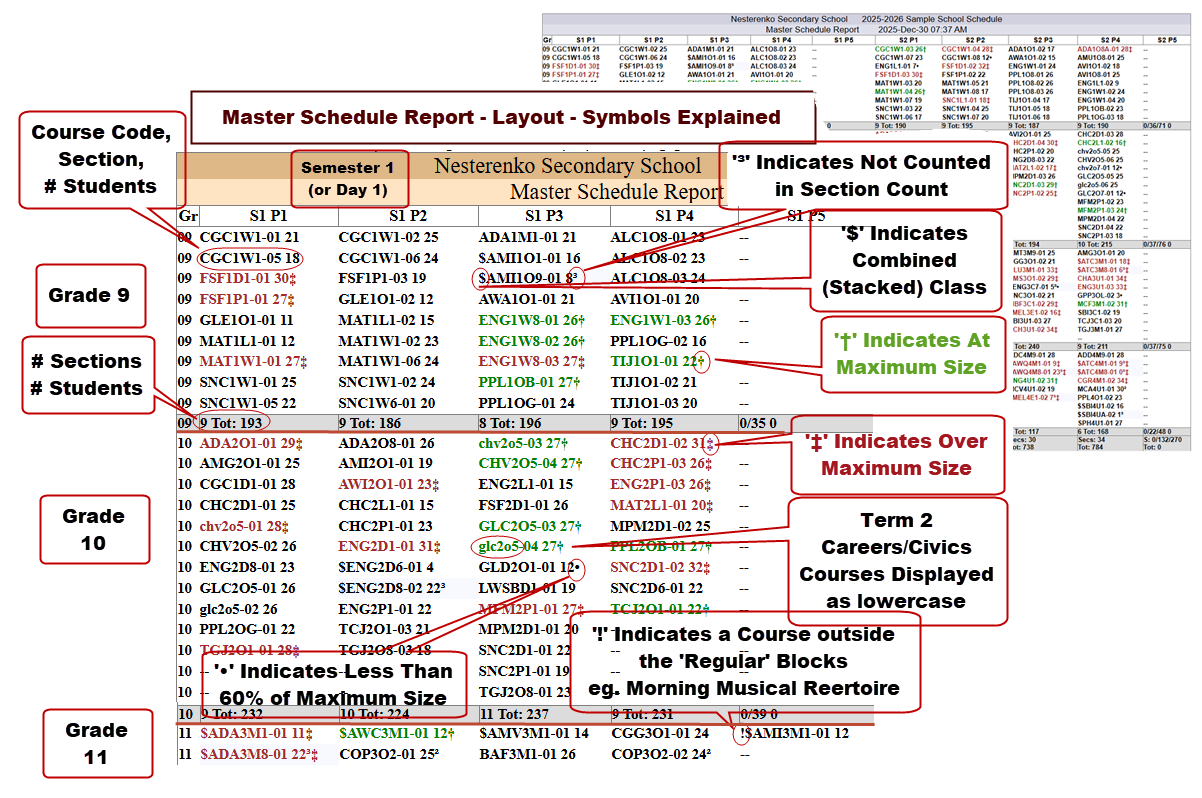
(Click on Image to Enlarge) |
|
Master Schedule Report - Entire School
This is the most commonly-used report within the app. Used extensivley during the Timetabling process and can be used daily throughout the year by Guidance to 'manage' the Master Schedule and to help while counselling students regarding timetable changes. 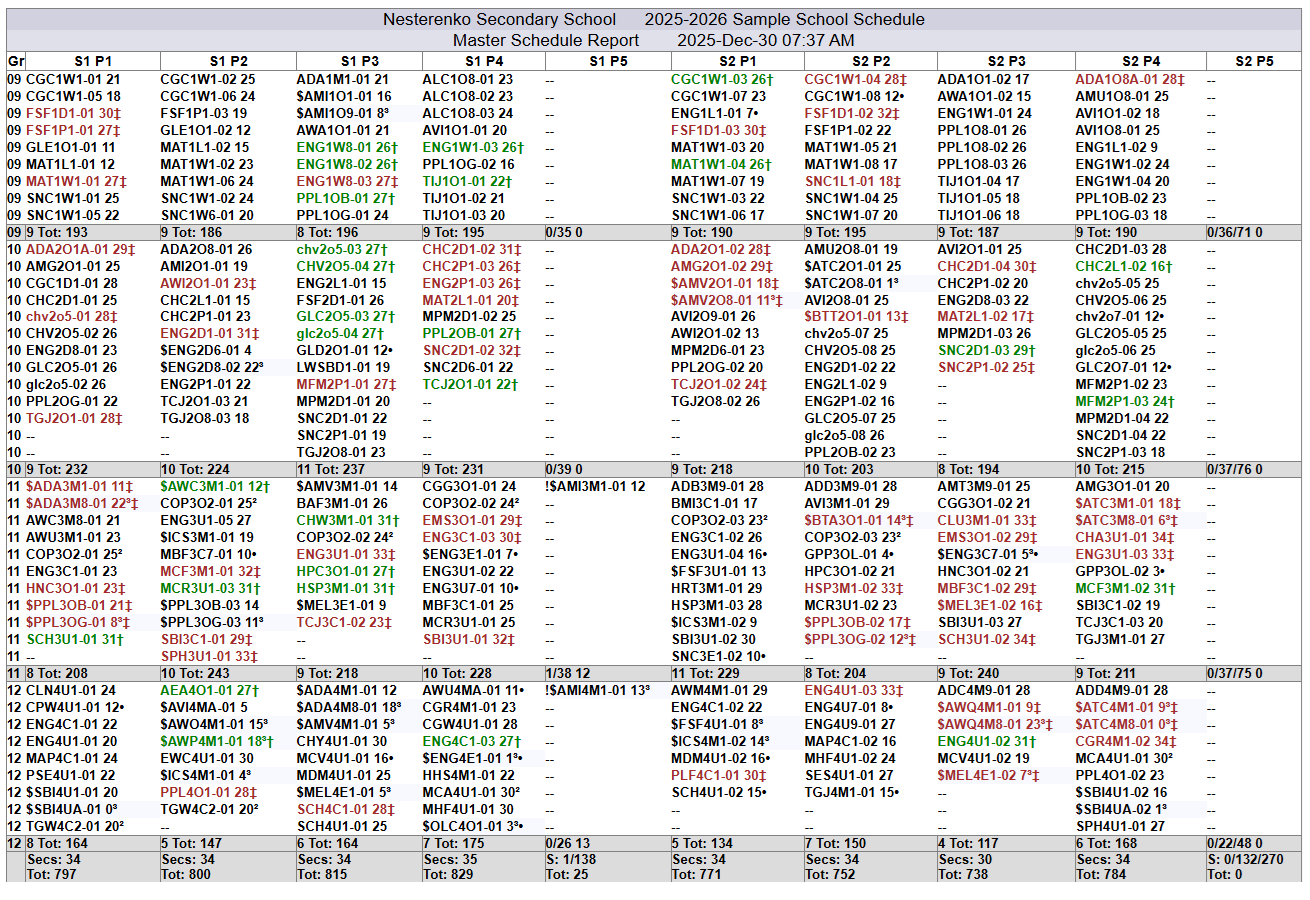
(Click on Image to Enlarge) |
Teacher Linear Report Displays each teacher's assignment. 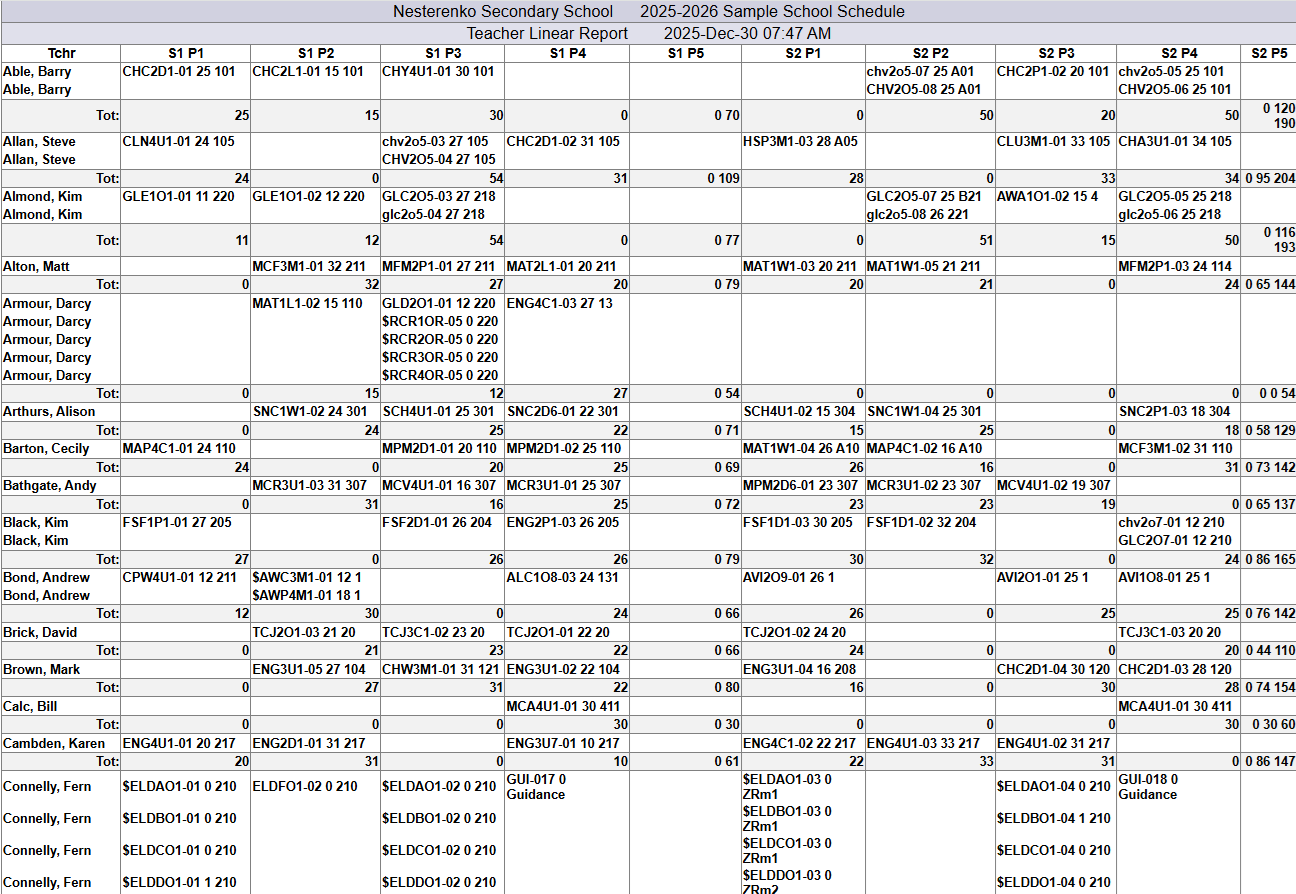
(Click on Image to Enlarge) |
|
Room Linear - Concise
One line per room - At a glance can find an available room in a particular period. 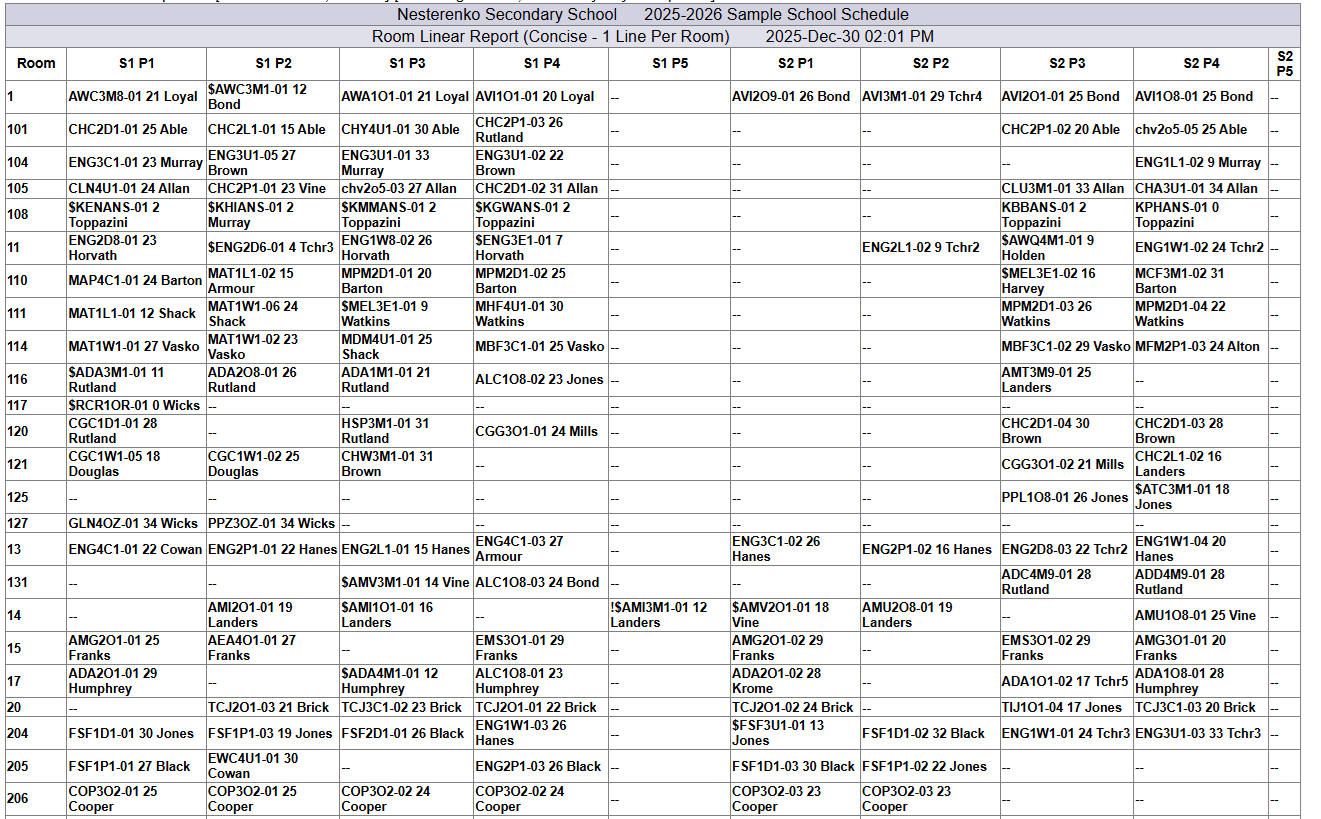
(Click on Image to Enlarge) |
Master Schedule Report - By Department
One Page Per Department. 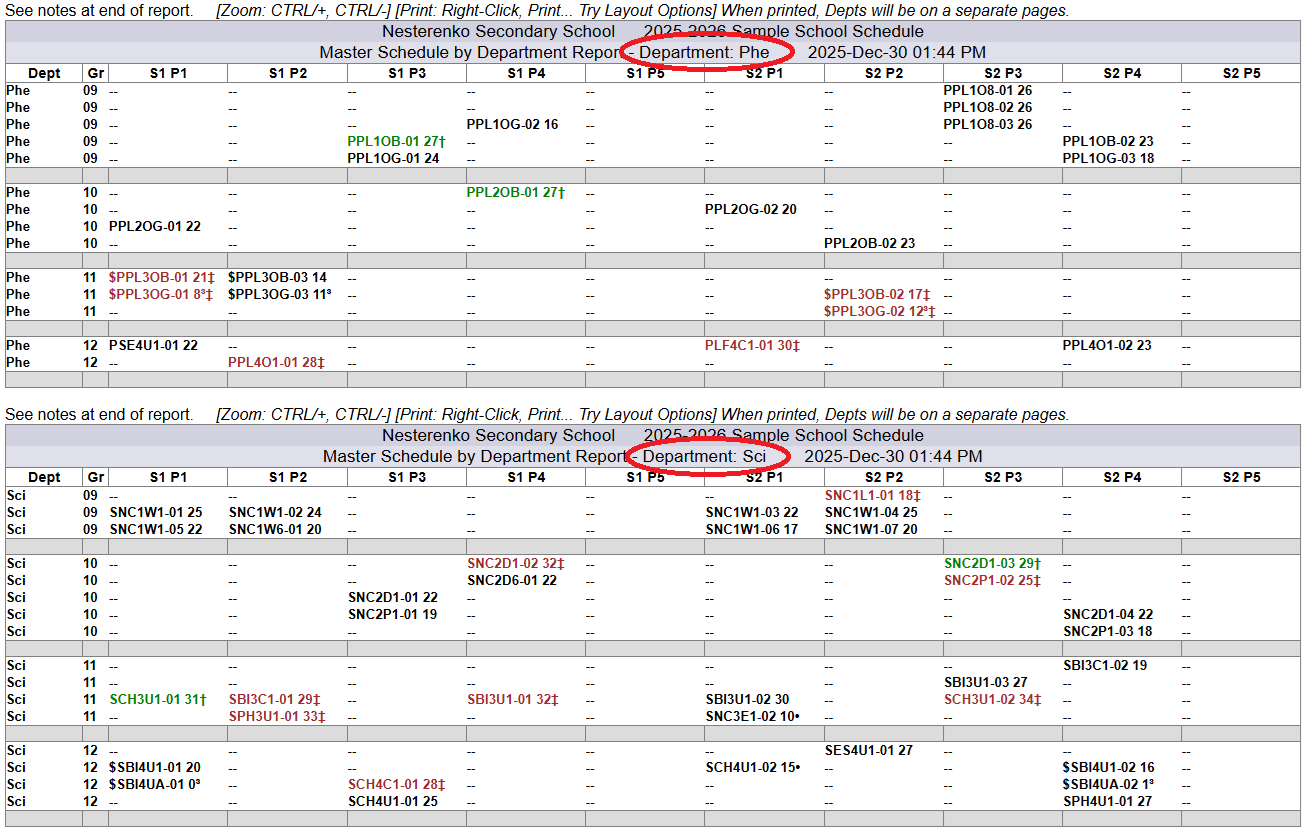
(Click on Image to Enlarge) |
Master Schedule by Department - Display Teacher
One Page Per Department and displays teacher name. 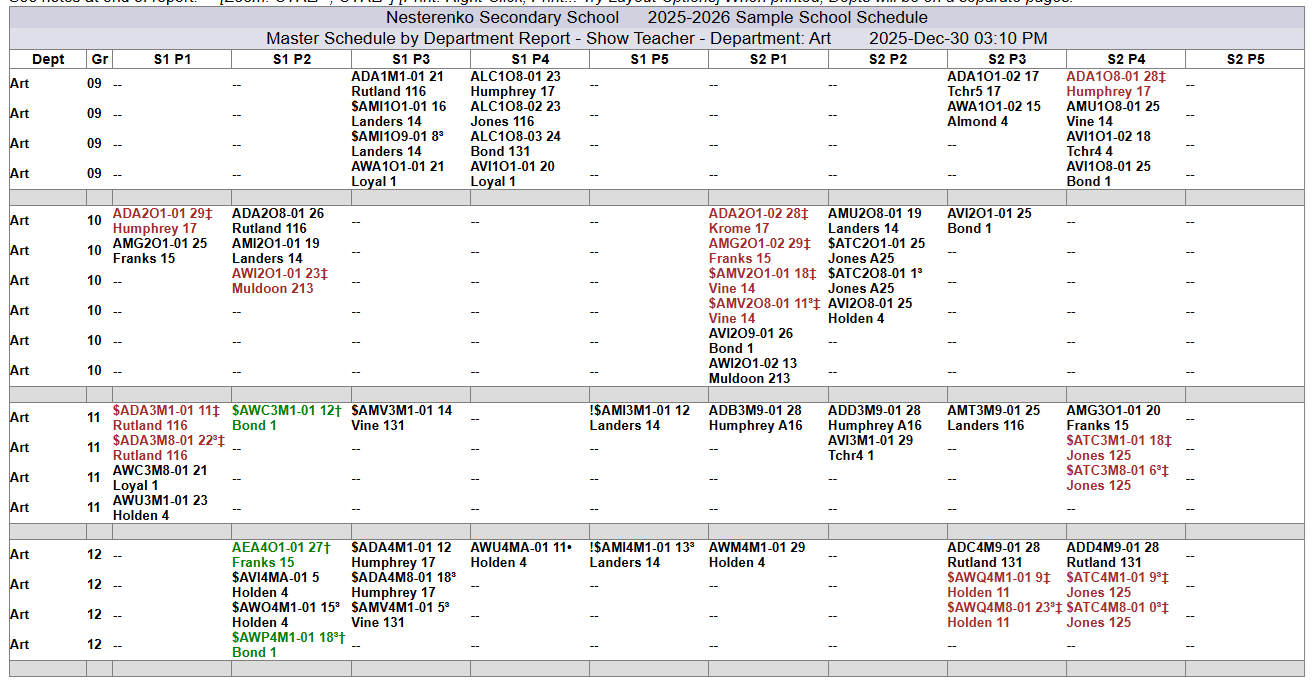
(Click on Image to Enlarge) |
Master Schedule Report - Coloured Departments
Each Department (1st character of course-code) displayed with a different colour. 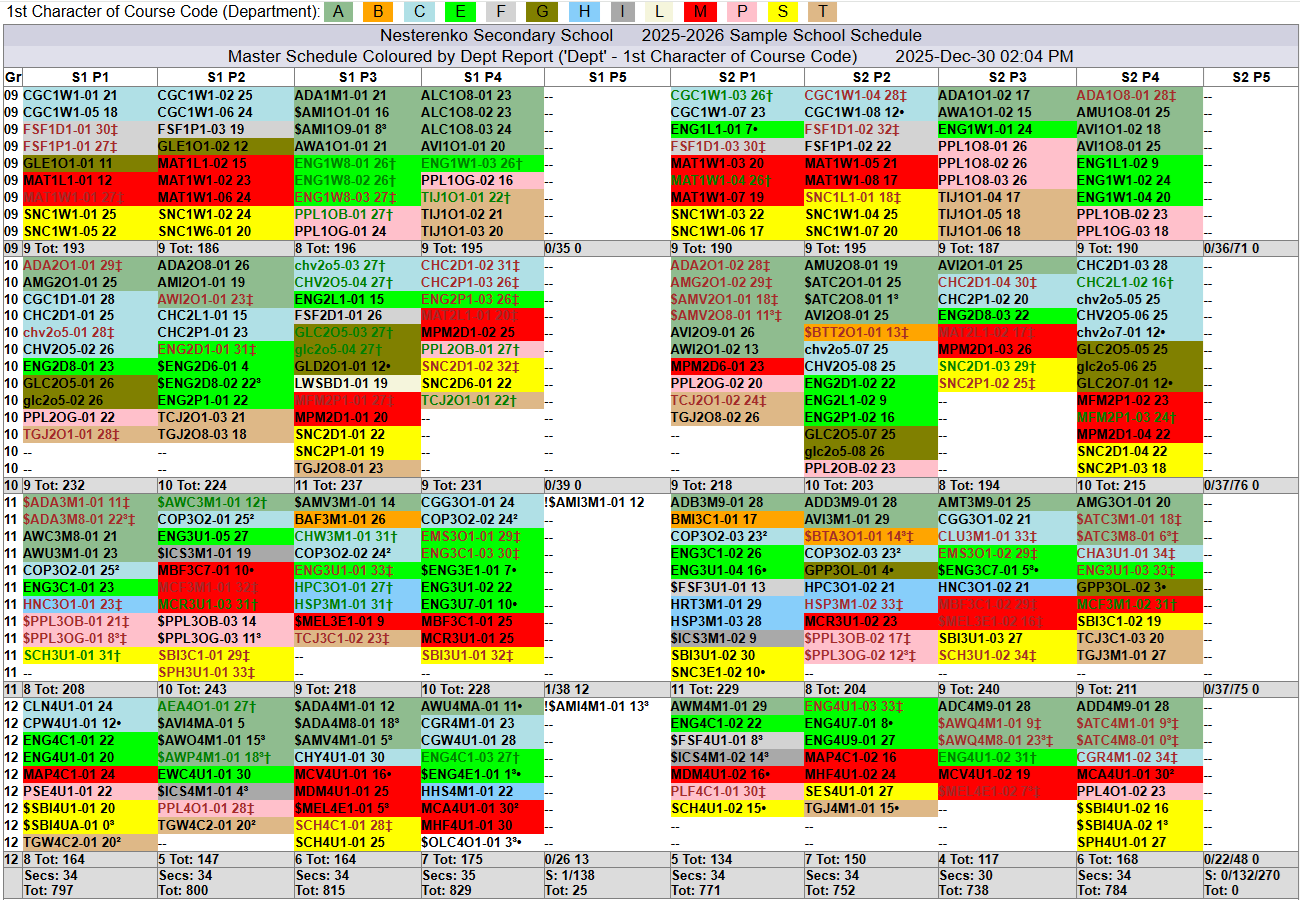
(Click on Image to Enlarge) |
|
Master Schedule Report - Combined (Stacked) Courses Only
Displays only Combined (Stacked) Classes. 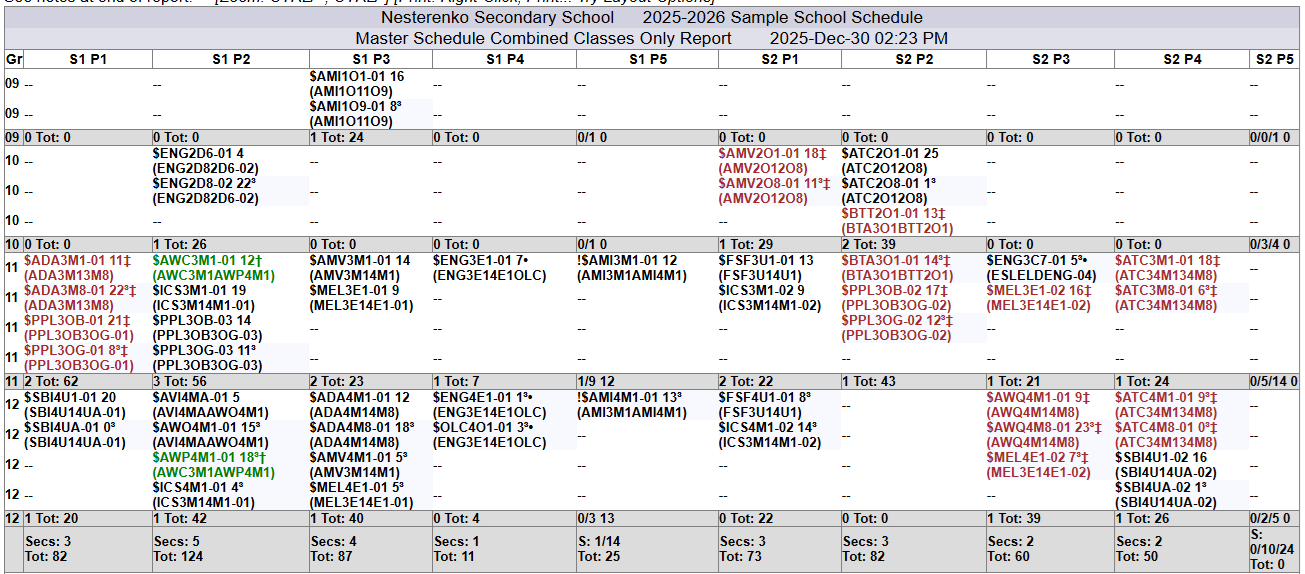
(Click on Image to Enlarge) |
Master Schedule Report - Display Teacher
Displays the teacher name. 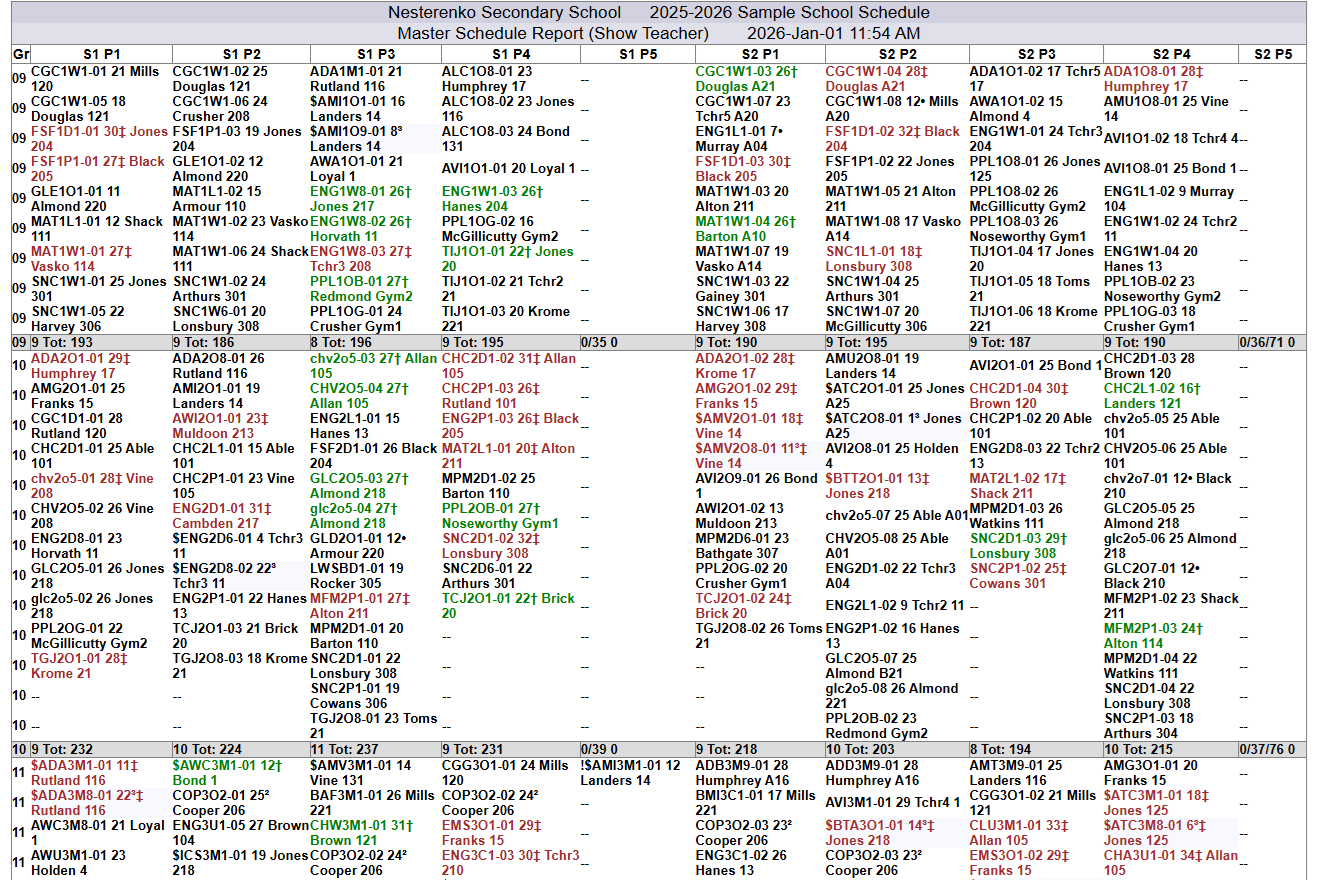
(Click on Image to Enlarge) |
Master Schedule Report - Single Sections Only
Sometimes useful to be able to see if single sections have been spread-out across the Master Schedule. 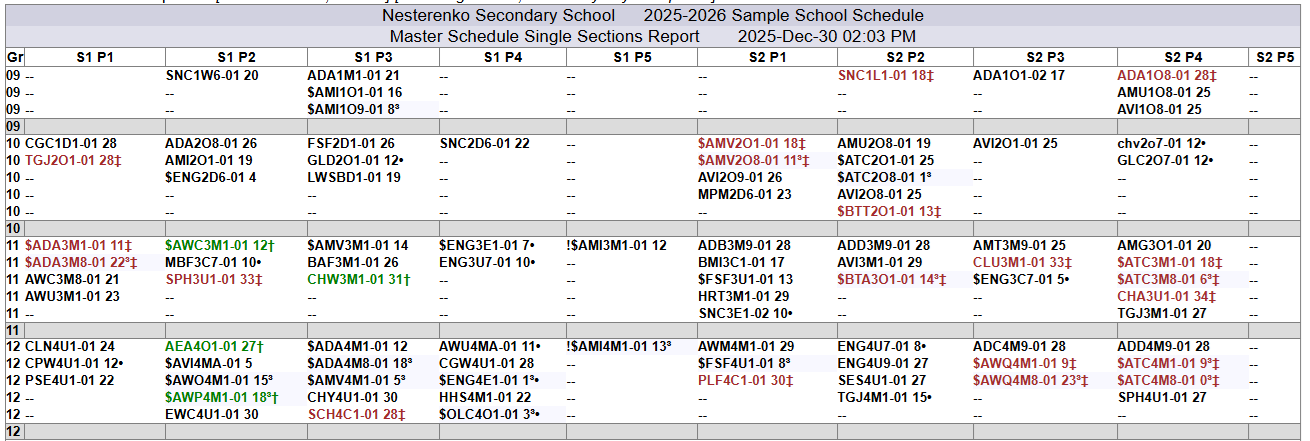
(Click on Image to Enlarge) |
Master Schedule Report - Section Size Percent
Displays Section Size as a Percent of Class Maximum Size. Easy to find courses that have not loaded well. 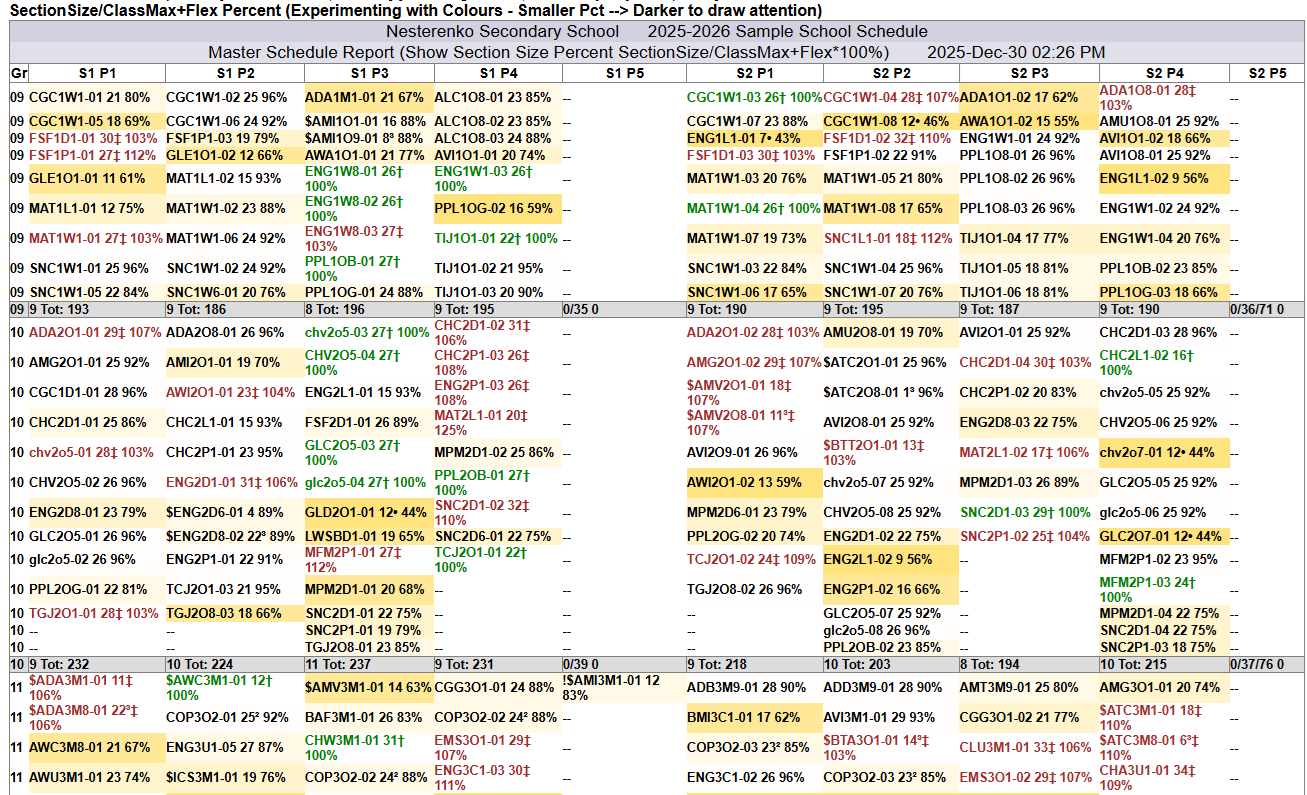
(Click on Image to Enlarge) |
|
Master Schedule Report - Capacity
Displays the Max Size for each course rather than the # of students in the class. 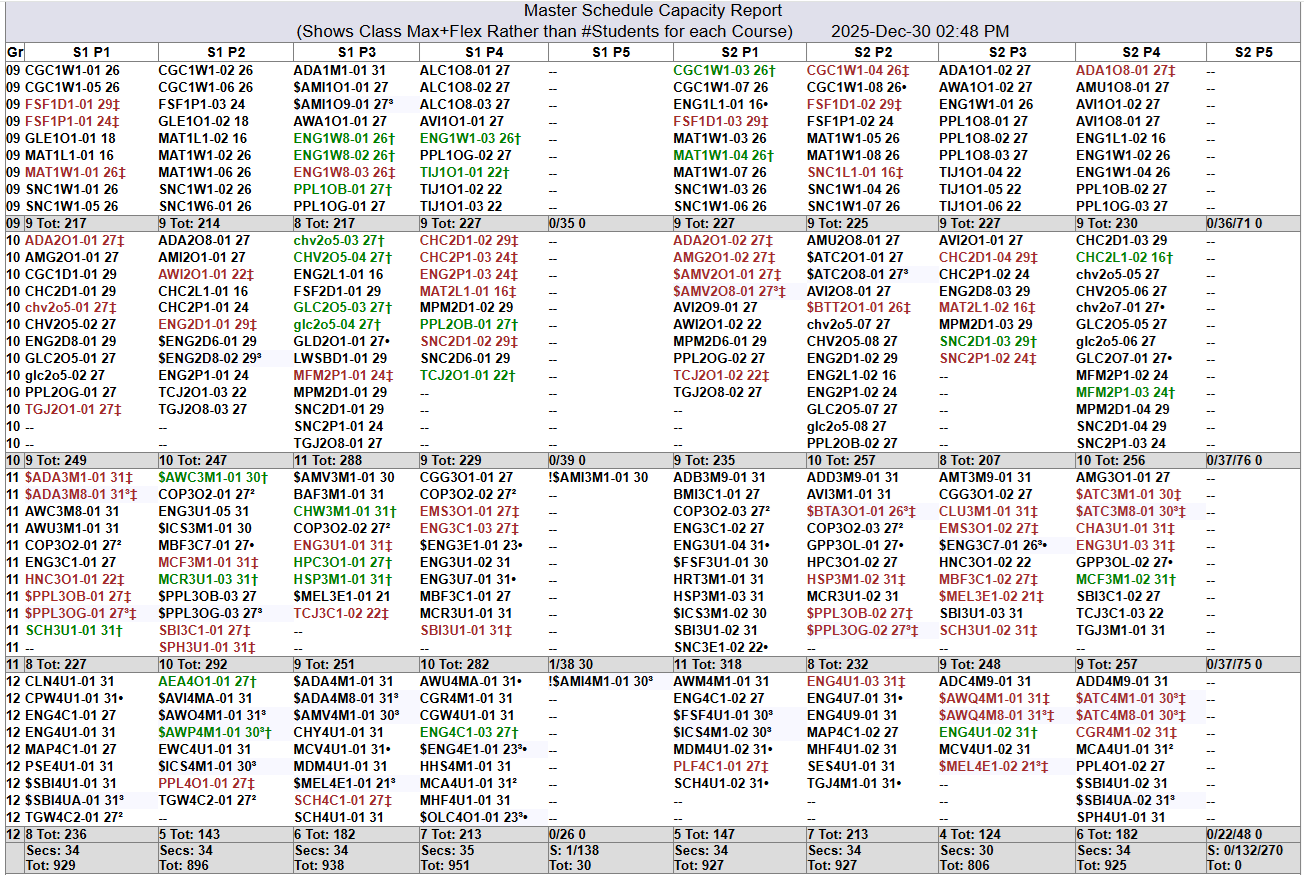
(Click on Image to Enlarge) |
Master Schedule Report - Coloured Pathway
Each Pathway ((5th character of course-code) displayed with a different colour. 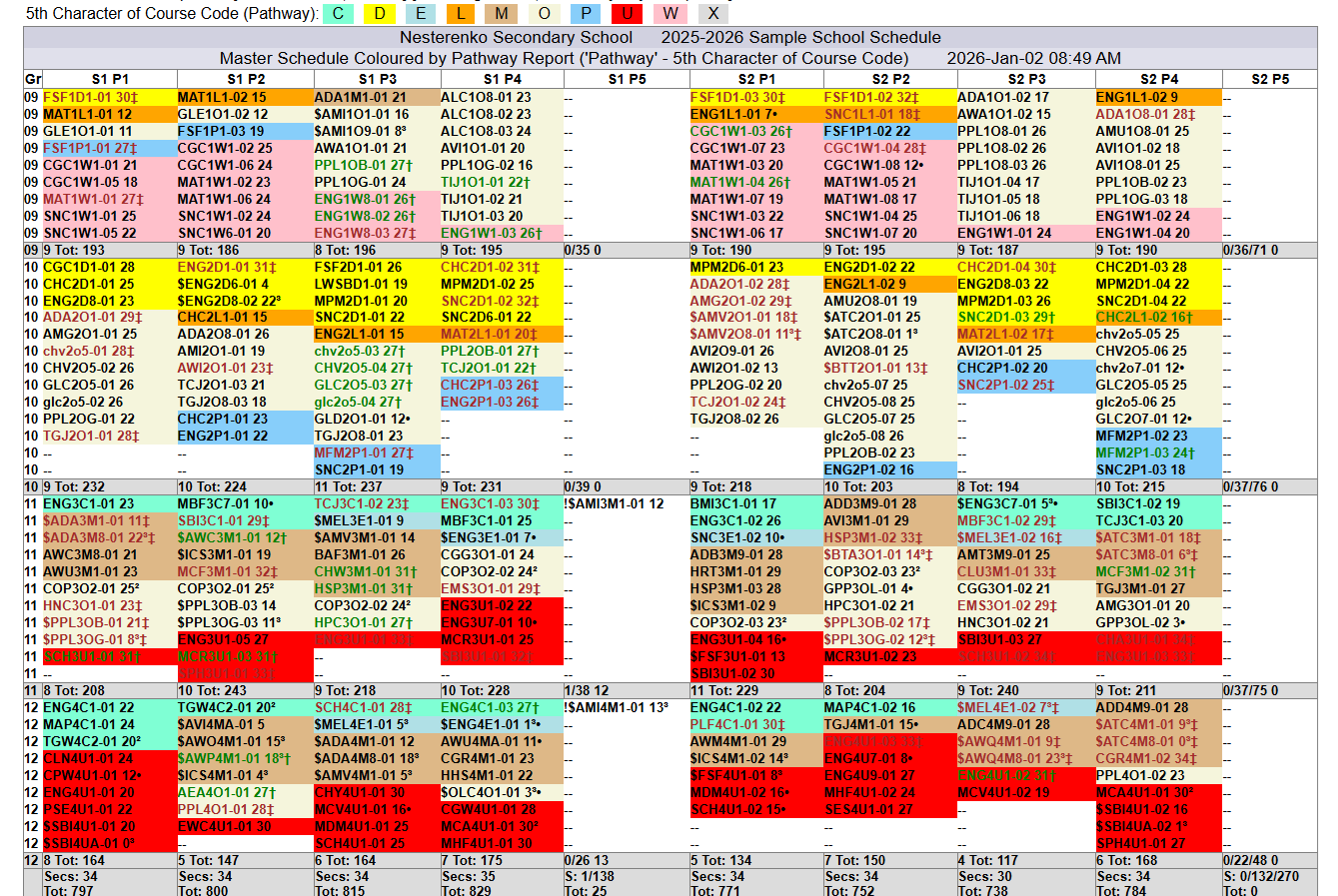
(Click on Image to Enlarge) |
Master Schedule Report - Only Courses At Maximum or Over Maximum
At or Over Max only. 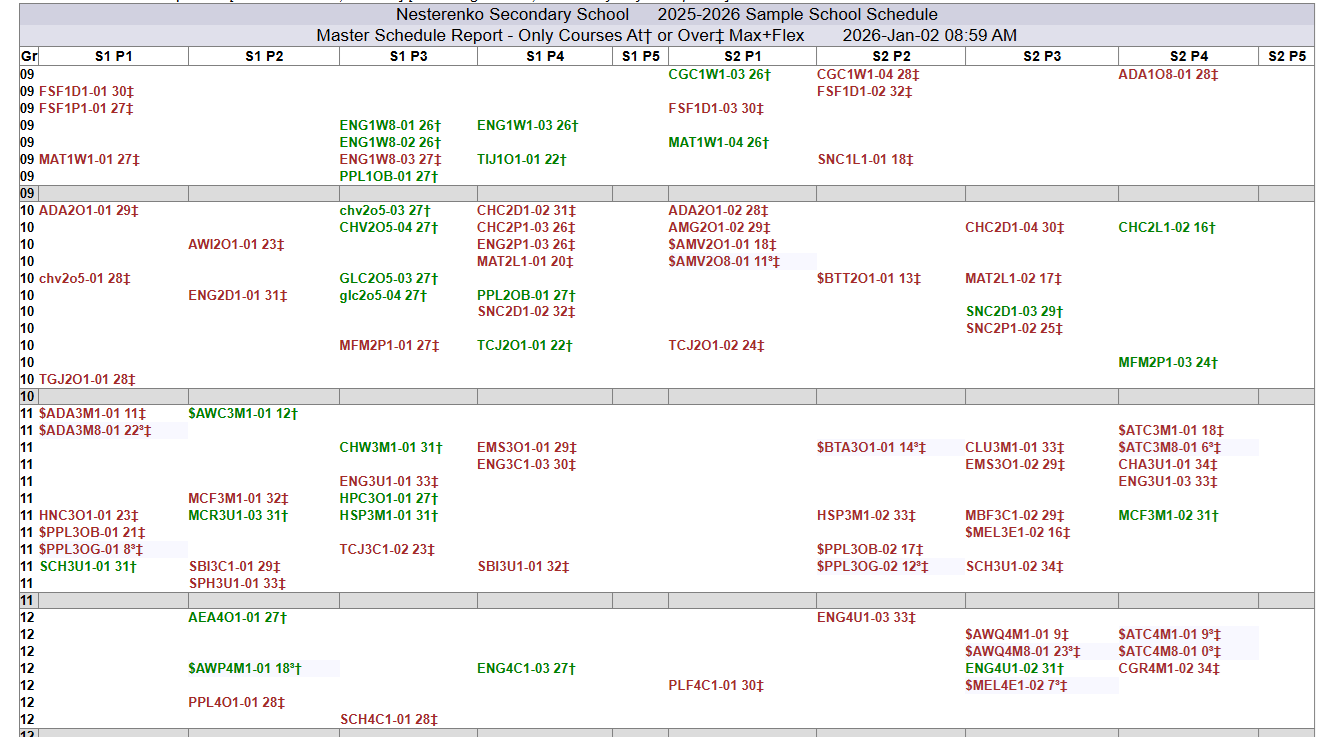
(Click on Image to Enlarge) |
Master Schedule Report - Low Enrolment
Only courses that have a Size less than 60% of Max 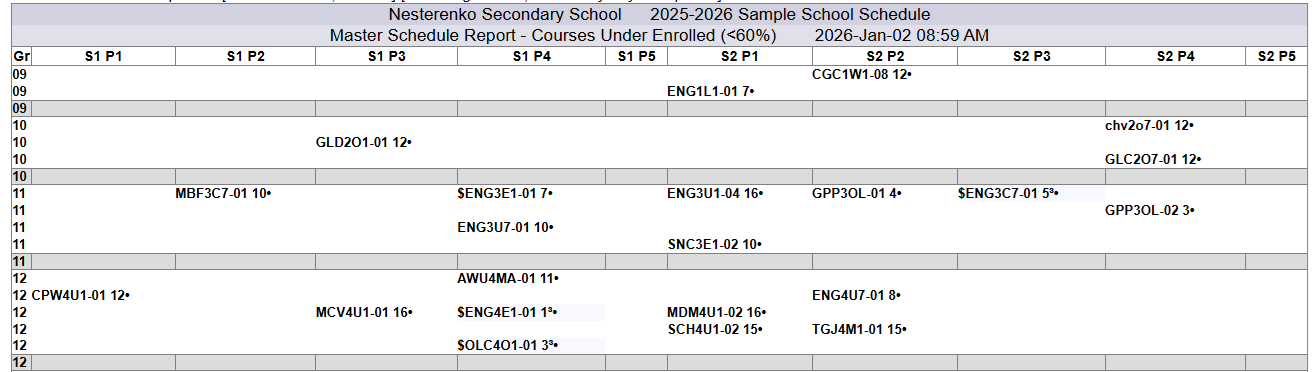
(Click on Image to Enlarge) |
|
Teachers Teaching Within Each Department
Handy for Department Heads to see all their teachers and where their teachers are teaching outside the department. 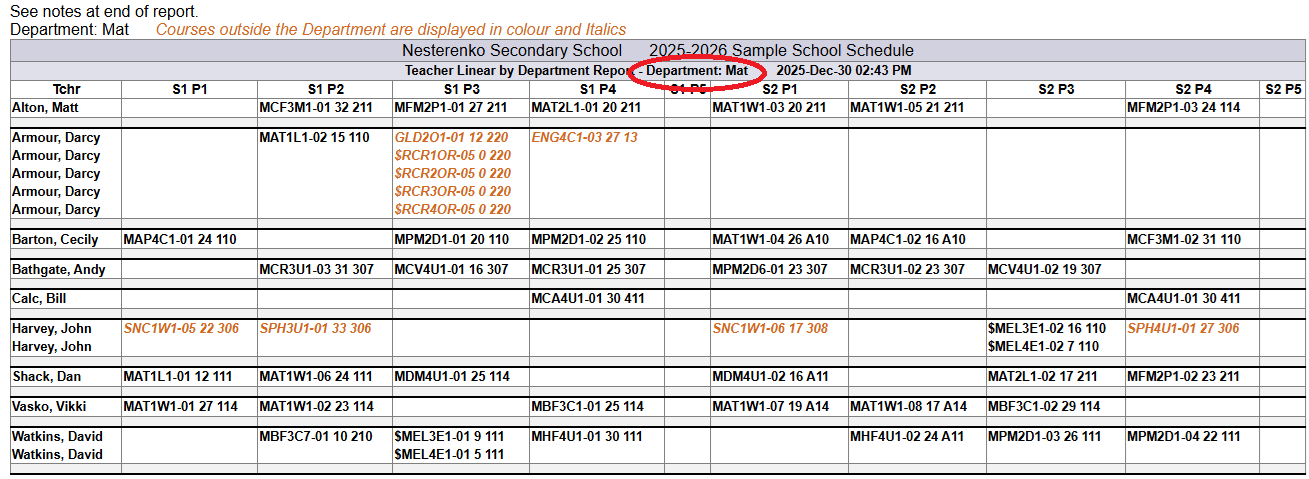
(Click on Image to Enlarge) |
Section Count by Department Summary
Useful when building sections to reconcile number of sections created to school staffing allocation. 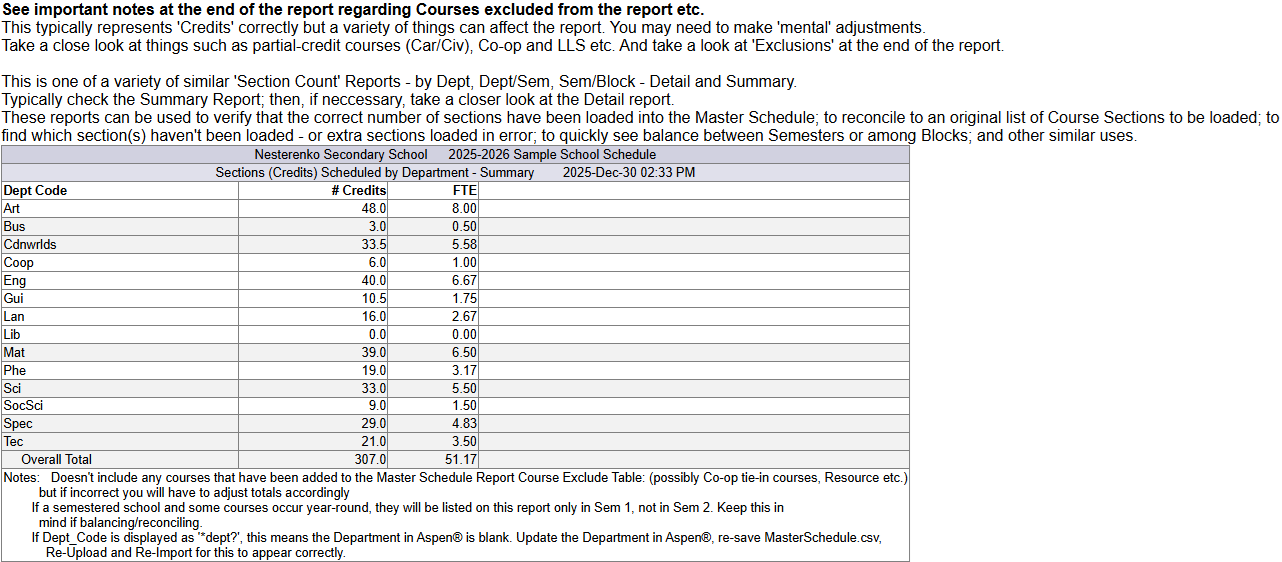
(Click on Image to Enlarge) |
Section Count by Department/Semester Summary
Useful when building sections to reconcile number of sections created to school staffing allocation. Can see balance within Department by Semester. 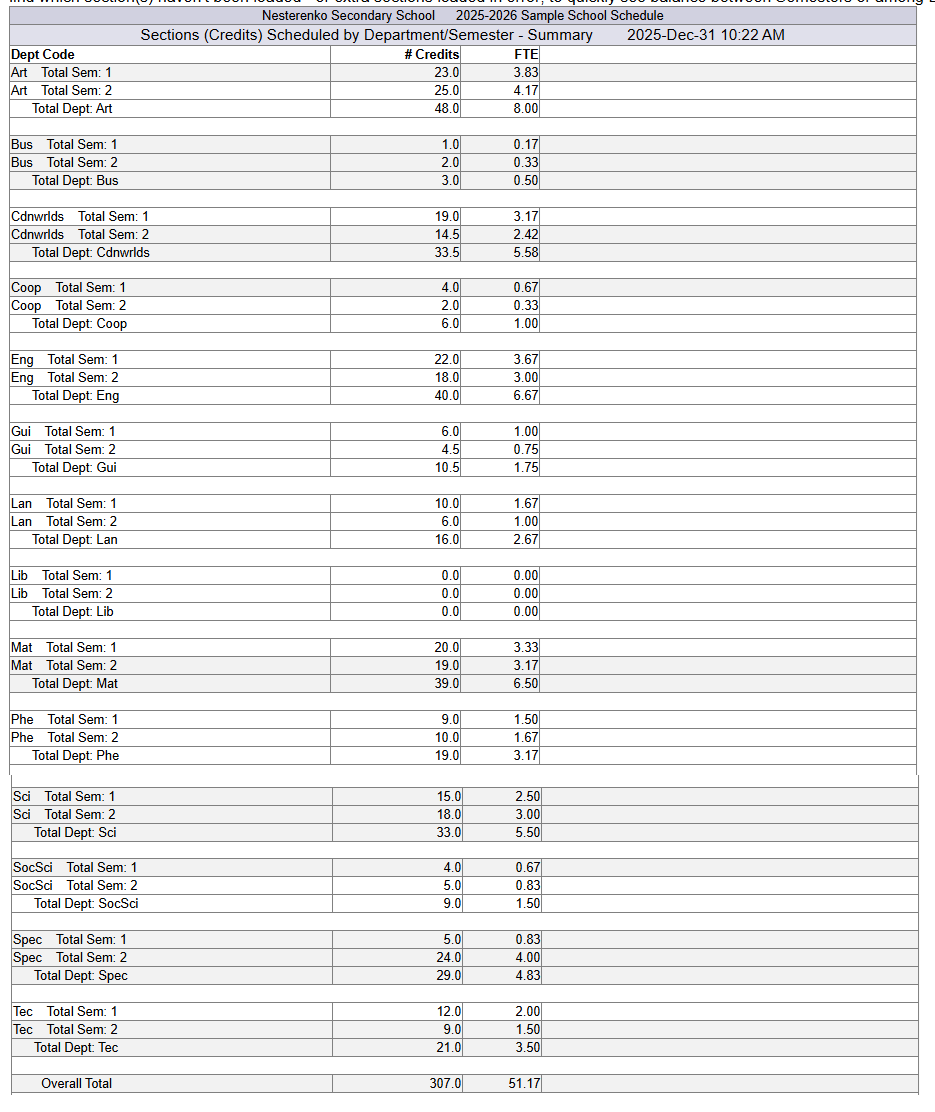
(Click on Image to Enlarge) |
Import MasterSchedule.csv file
The process of extracting CSV data from the School Administration System and refreshing reports takes less than a minute. 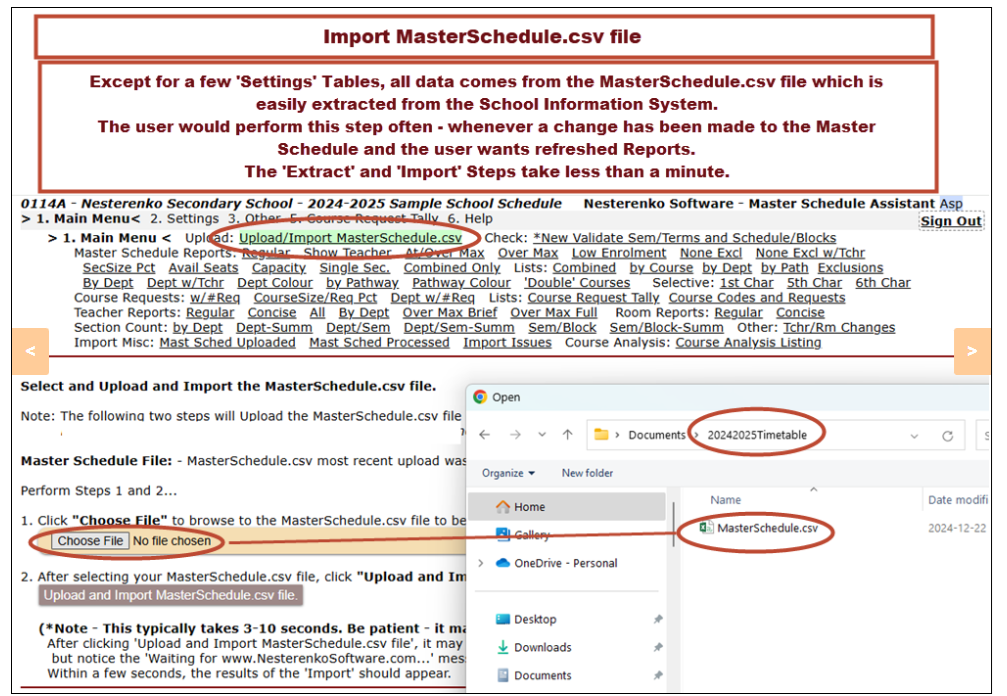
(Click on Image to Enlarge) |